Breaking Down Every Type of PCIe Power Connectors and Adapters You Will Ever Need
- brianybarra0
- Feb 21
- 12 min read
Updated: Jul 21
We here at Computer Components Restored have created the ultimate guide (with pictures and diagrams) breaking down everything you need to know so you can purchase the exact PCIe Power Adapter you need for your setup.
Quick Overview:
VW-1 Flame Retardant Design
When dealing with high voltages, it is common for wire to reach temperatures that can ignite material that otherwise would not have otherwise combust. What causes copper wires to generate so much heat ranges from failing fuses, overvolting, catastrophic failure, and more. However the underlying problem is directly from electrical systems failing.
Before fire retardant certifications were in place, such as the VW-1 standard our cables carry, copper wires during failure would get so hot they would indirectly ignite their plastic housings. Without any additives or special processes, plastic itself is extremely flammable. This is due to the fact that plastic alone is mainly made up of petroleum, which contains carbon and hydrogen, which act as solid fuel. One could only imagine the house fires and catastrophic events that would follow an electronic fire, which is why industry standards had to change.
VW-1 is a solution to that problem. VW-1 is a standard created by Unterwriters Laboratories that identifies a cable as self-extinguishing. They do this by testing a cable to ensure it can pass a series of open flame exposure tests. During these tests they expose a cable to an open flame for 15 seconds, and if it is able to extinguish itself within a 60 second time period it can be considered a VW-1 certified cable.
For a cable to be self-extinguishing, its manufacturing process introduces special polymers into it’s plastics to ensure it can no longer act as a fuel source and extinguish an active flame. These special polymers being PVC, XLPE, and Silicone change the chemical reaction to produce gases that smother the flame as well as leave a carbon film which acts as a flame resistant protective coating.
This technology doesn’t prevent a cable from catching fire, it rather aids in the prevention of a fire from spreading through its protective plastic housing.
Max Supported Watts & Amps
When considering power adapters, the discussion of safety is commonly talked about but grossly overlooked. The reasoning is due to the fact that they are considering the watts required by the GPU, and whether or not their PSU can support it, but what’s being overlooked is the max watts and amps their adapters can support.
Failure to provide your system with an adapter than can keep up with the watts and amps provided by it’s connected power supply will become a guaranteed failure point which will result in a catastrophic end. Everything from housefires, entire motherboard and processors destroyed, there is no end to the problems that would result from putting an undercapable adapter in an over-cabable system.
PCIe 6-Pin to 8-Pin Adapter Limitations
Your gpu is requesting power the psu supplies, the limitations of your adapter are not considered during this transaction. Which means the quality and gauage of wire your adapter carries sets it’s limitations. Our cables are 18 gauge wires are rated for 7-10 amps, which translates to 100 watts. Which means when you include the 75 watts provided by PCIe X16 bus your graphics card plugs into, you get a combined max supported wattage of 175 watts each adapter can support. Below is a list of supported max gpu ratings our adapters can support.
(1 cable) Max Supported GPU Power Draw of 195 watts
(2 cables) Max supported GPU Power Draw of 270 watts
This information is provided by the manufacturer of your graphics card as well as the board partners direct website.(show example) For reference, some of the top selling gpu’s and their max watt usage under load are listed below:
NVIDIA GeForce RTX 3060 12 GB: 170 w
NVIDIA GeForce RTX 5060 Ti 16 GB: 180 W
AMD Radeon RX 9070 XT: 304 W
AMD Radeon RX 580: 185 W
NVIDIA GeForce RTX 5090: 575 W
Please be sure your gpu max watt usage is within our PCIe Power adapter rating.
But why have such a low supported wattage? Because during catastrophic failure, the weakest link becomes the standard, and since our weakest link would be the limitation one single cable can provide, we dedicated that to be our standard. A single adapter isn’t supporting your gpu, it’s a bridge that receives power from the PSU. So catastrophic failure comes from the PSU as a failed fuse, blown capacitor or other issues can send an instant surge of amps and watts near it’s max capacity. For PSU’s that capacity can be anywhere from 3-83 amps (translates to 36watts - 996watts) which well exceeds our max supported watts and amps.
Along with our max power rating, our adapter’s Maximum safety Operating Temperature is 80c (176f). It is also stamped with a 1007 300 voltage rating. It’s 300 volt rating is accomplished through it’s 18 gauge wire thickness. Varying widths of copper diameter can control the amount of volts a cable can support, and with an 18 gauge thickness we can ensure our cable can comfortably support up to 300 volts at one time. 18 guage thickness is exactly 0.0478 inches or 1.214 mm.
SATA PCIe Adapter Limitations
Each motherboard provides 75 watts from the PCIe x16 port on your motherboard, however each SATA connection that comes from your PSU provides 54 watts of power. And since our SATA to 8-Pin adapter only connects to a single SATA connection, your graphics card cannot have a max watt usage that exceeds 129 watts.
Max Supported GPU Power Draw of 129 watts
Please be sure your gpu is no greater than our max supported watts. This is because black screens and other issues can arise when using a gpu that draws more power than an adapter can provide. Below is a list of example graphics cards that work within our adapter’s max supported wattage:
NVIDIA GeForce GTX 1660 Ti: 120 w
NVIDIA GeForce GTX 1060 6 GB: 120 w
NVIDIA GeForce GTX 1650 SUPER: 100 w
Molex PCIe Adapter Limitations
Since Molex connectors provide up to 132 watts (11amps) of power from the psu, the limitations of our adapter are not bound by its connector rather its wire size/ gauge.
Your gpu is requesting power the psu supplies, the limitations of your adapter are not considered during this transaction. Which means the quality and gauge of wire your adapter carries sets it’s limitations. Our cables are 18 gauge wires are rated for 7-10 amps, which translates to 100 watts. Which means when you include the 75 watts provided by PCIe X16 bus your graphics card plugs into, you get a combined max supported wattage of 175 watts each adapter can support.
Retailer's Give False Technical Information
When shopping for a graphics card, many people (rightfully so) go off the information provided by the retailer, but this information isn't always correct. Here's a couple examples:
Amazon is claiming the RX 9070 XT has a max resolution of 3840 x 2160 pixels, however when we check the manufacture's information, they claim it's true max resolution is 7680x4320.


Amazon also failed to put the correct size of the graphics card. And after converting the manufacturer's mm to inches we see the true demension of the graphics card is "11.338 × 5.197 × 2.205 inches". Which puts Amazon's 3.94 inch length, and 5.91 inch width grossly off it's true length of 11.33 inches and 5.19 inch height...
I could go on and on about Amazon's misinformation as nearly all their listings carry this mistake, but it serves to make my point clear. Retailers fail to give buyers accurate information, which will lead many to buying the wrong supporting hardware as they trusted in the wrong information. But there is a solution!
Discovering if Your Desired GPU Needs a PCIe Adapter
Always going off the images, in our nearly 10 years of doing business with all the major retailers, the images nearly always give the most accurate depiction of what you'll receive. It then becomes our job to figure out how to find what we're looking for through those pictuers, and in that case we're looking for PCIe ports.
And so how do we find where those PCIe ports are located? We are looking for the top of the gpu that will face outwards once installed. Below is an example of what that looks like.

It might seem silly how obvious this is, but it isn't to everyone and sometimes we're in too much of a rush to notice, so I'm going to explain it. The image on the right is outlining in red the exact location most PCIe ports are located on *most graphics cards. This location CAN change, but the types of gpus where this is the case is server gpus, but it does justify my point, which is to simply look around for the PCIe port.
How to Know How Many PinsYour PCIe Power Adapter Will Need
In this image we can already identify what PCIe Power Adapter this GPU needs to operate simply by counting how many box shaped openings there are. And that means we can identify it as an 8-pin PCIe port, which means especially that we have the first half of what we need to ensure we purchased the right PCIe power adapter.

Very Important Notes:
Please be aware, if you're looking for the PCIe port and you can't find it, that's ok. Not all GPUs come with this port as they might not use enough power to require this port, and that's ok (extra power savings!).
Also, it's very common for there to be an extra PCIe port besides one shown above, but don't be mistaken. They can come in combinations such as an 8-pin besides a 6-pin, but when identifying these ports ensure you're counting them as seperate ports as there is no current ports that go above an 8-pin.
Lastly, nearly all the available port types are 4-pin, 6-pin, and 8-pin, so there isn't much room to get this part wrong :)
Understanding Power Cables Your PSU Provides, and Knowing if An Adapter Will Work
Now, lets put this information in context. We've identified the male-end to the PCIe Power Adapter and that is going to get us most the way there. But now we need to know what our PSU (power supply unit) provides to understand what type of connection the female-end will connect to our psu from our gpu.
You might need to read this blog on your phone as the information I'm going to give you will be best viewed on your phone as you open up your pc to verify.

It's common for PSUs to come equipped with a few extra PCIe cables for exactly this reason, gpu expansion, but this isn't the case for all. You can either identify this extra cable via it's male-connection (as seen in the picture above), or (like I recommend) we identify it at the base of the PSU and follow the ports identified as VGA. See picture below for context:
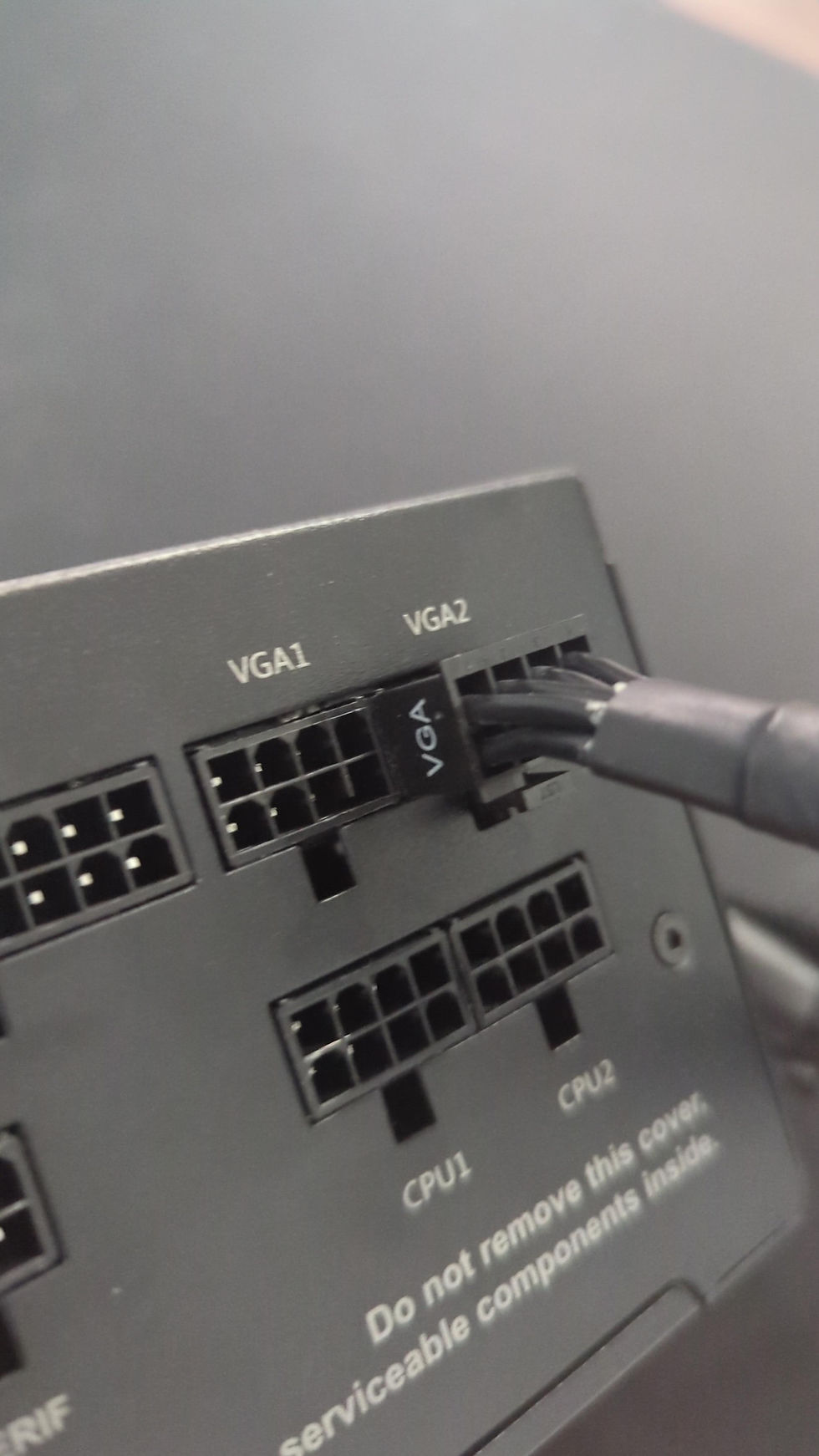
Now, perhaps your psu looks like a hole with a ton of un-labled cables all coming out like roots escaping out from the top of a cup. And this, unfortunatly is the most common PSU type.
It's the most common and cost effective PSU known to man, which is exactly why I recommended searching for it visually at the start. But what you'll find is that your male ended PCIe Power cable might not have enough pins your gpu needs. If this is the case you need an adapter, if your psu doesn't have an extra PCIe power cable at all then you'll need to keep reading the next section. If you have the right amount of pins on your male-ended PCIe Power cable then you don't need an adapter as you're all set for your gpu! Just make sure you add this visual inspection to your next gpu purchases in the future. As for the rest of you, keep reading.
Breaking down what female-end your PCIe Power adapter will be compatible with
Moving forward, I'll be breaking down two different individuals who reflect two different circumstances. Person A, who has a PSU that has an available PCIe power cable but doesn't have enough pins to match their gpu. Then person B who's PSU has no PCIe power cables, but has an available molex or extra SATA connection.
Person A; What you need is a female sided pci-e power adapter that matches the number of pins your psu's pcie power cable supplies. And for the opposite side of the adapter, you'll need a male sided pci-e power connector that matches the pin number on your gpu. I know it seems complicated, but please refer to the picture below for help:
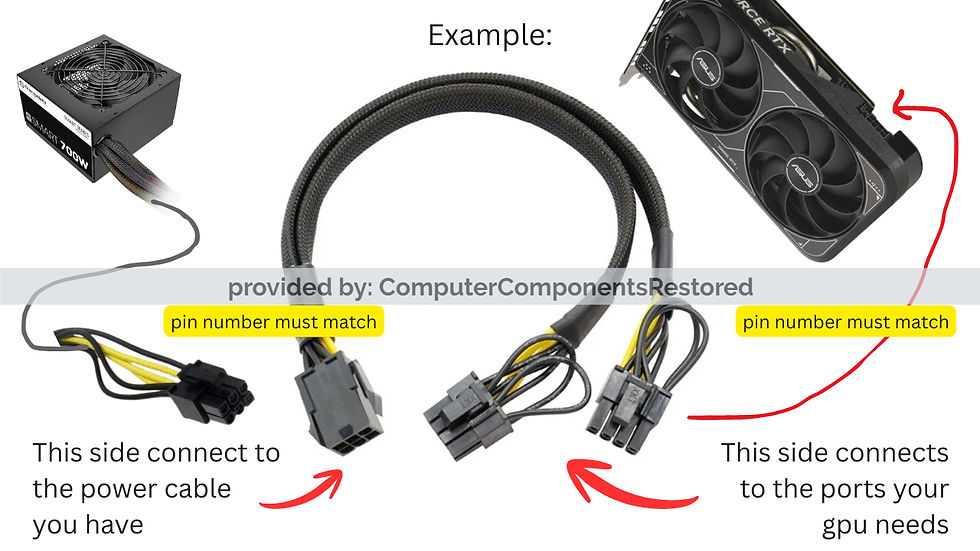
Person B; Again, you're the person who doesn't have PCIe power cables coming from their psu. You have a few options that all have a varying source of power at male-end, but similar connections female-end, as you're differing circumstances all end up connecting to the same gpu requirements.
You will have to physically search your psu and verify if you have either of the following cable types; Molex or SATA, these cable types are more simple to install as there is only one type of Molex, or SATA cable that will connect at the start.
We've identified the port types in the picture below:

I'm going to be brief and use the diagram below to explain what your adapter circumstance will require as a picture simplifies the overall point.
Below is the diagram you will follow if you have have an available SATA cable on your PSU:

Below is the diagram for those who have an availalbe Molex cable coming from their psu.

Ready to purchase the right PCIe Adapter?
Check out our listing where you can select the exact adapter type you'll need:
What to do if your PSU doesn't provide any extra cables to adapt
If your psu doesn't have an extra PCIe power cable, or SATA cable, or MOLEX cable, then your only other option would be to upgrade to a PSU that provides enough PCIe power cables.
It's at this point I recommend not to just upgrade to another basic PSU, but to consider it as the foundation your future upgrades will connect to. The more reputable PSU's we trust are any from EVGA, Thermaltake, or Corsair. Our experience has proven they are a very safe brand to go with and when dealing with high voltage electronics, you should never "cheap" out on something so dangerous.
When upgrading PSUs, you'll need a few things in mind:
Watts
Available Cables
Size
We here at Computer Components Restored recommend upgrading to a PSU with no less than 1,000 watts, but 1,500 watts is ideal. Why go so overboard? Whenever you upgrade parts, there is often a minimum power requirement most manufacturer's request and this number is largly underestimated. Resulting in many systems shutting down when their components require more power than your PSU can provide, or worse causing a system slowness as your components can often run faster than advertised *if given the extra watts.
Below is the result of benchmarks we completed, testing 4 generations of graphics cards, all generations were able to reach clock speeds significantly greater than their advertised speeds while connected to a 1,000 watt PSU (Providing much greater power than the min. requested by the manufacturere)

So when upgrading PSUs, always go with 1,000 watts or greater.
Next thing to look for is the most obvious, it's available power cables. Besides the basic cables each psu contains for system critical components, extra PCIe power cables should be at the top of your list of importance. We recommend a fully modular PSU, but what does modular mean in this instance?
A modular PSU is a PSU who's cables aren't directly connected to the power supply unit itself, rather seperate cables you need to individually connect into it's respective available port on the power supply unit. These are perfect for cable management as they allow you to have only the power cables you need for your setup, allowing you to store the extra cables elsewhere making it a very easy to manage foundation for future upgrades.
A PSU with no less than 3 available PCIe power cables is needed to future proof your system as many gpus can require several and numerous pin requirements.
Lastly, you'll need to be very aware of how much space your exsisting psu has, as many pre-built systems leave zero room for larger PSUs. Just consider the measurements listed by the manufacturer directly and match it up the best you can.
We truely hope this applies to you and most your scinarios. We hope this article gave you enough information and context to assist you ing understanding the wildly complex world of connections and cable types because NO ONE wants to have to use a refund policy and DOUBLE the time it's going to take to get their system running!

Comments